Azure Fabric :: Part 5 — Monitor, Git and Deploy
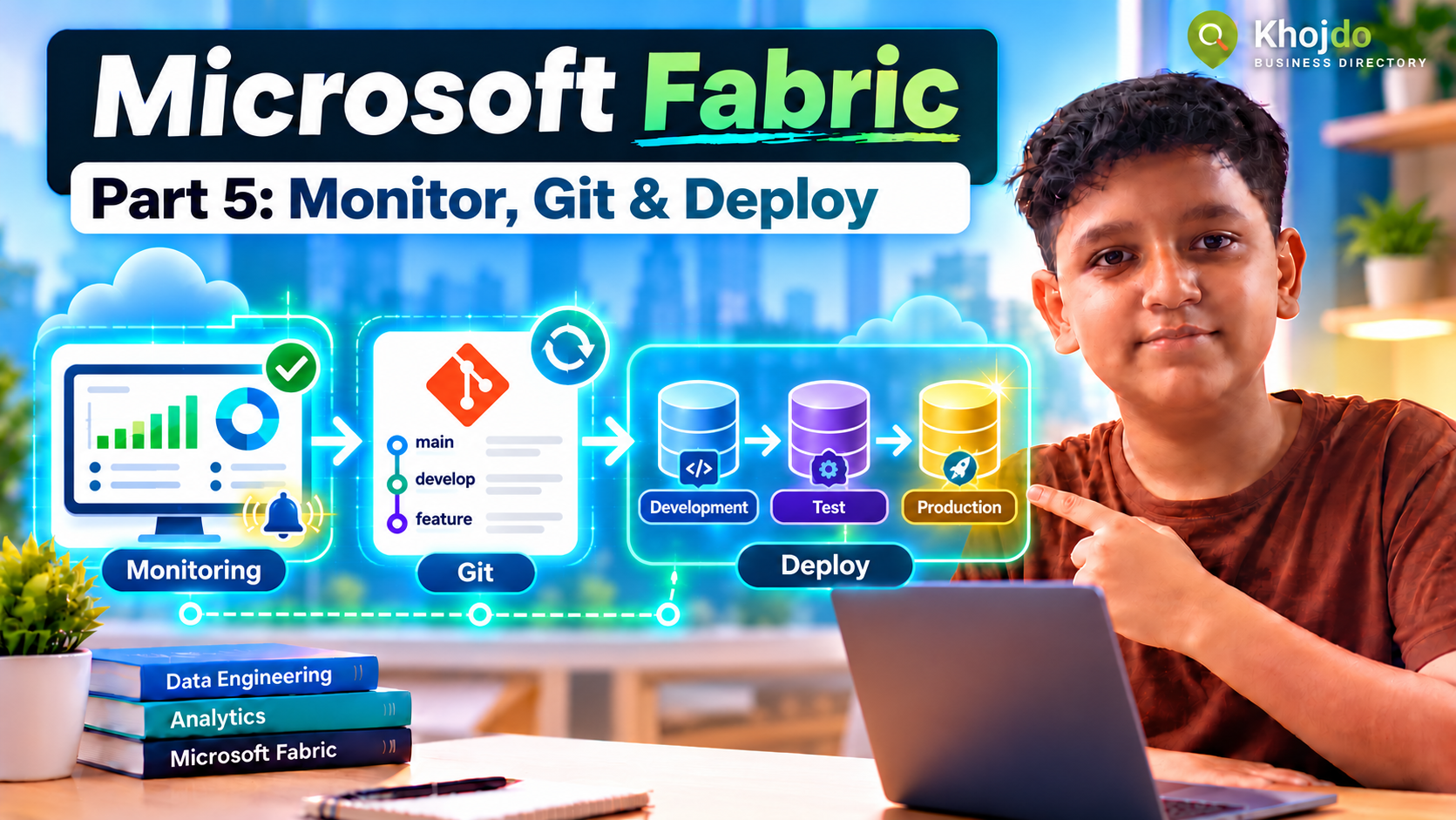
Monitor Fabric runs, track workspace changes in Azure DevOps Git, and promote tested items through Development, Test and Production.
In Parts 1–4, we created a workspace and Lakehouse, ingested data, connected OneLake sources, and transformed data with Azure Databricks. This final operations part shows how a junior developer can monitor runs, protect changes in Git and promote reviewed content safely across environments.
Before you begin
Use separate Fabric workspaces for Development, Test and Production. Each environment should have its own data connections, permissions and data-handling rules. Git integration and Deployment Pipelines depend on tenant settings, workspace permissions, supported item types and capacity. Ask a Fabric administrator to enable and configure these features if they are not available.
Part A — Monitor pipeline and notebook runs
- Open the Fabric workspace and select Monitor or Monitoring hub from the navigation.
- Filter to the item type and time range you are investigating. Start with the failed or long-running pipeline/notebook.
- Open the activity details. Review status, start time, duration, error details and the failed activity. For pipelines, also inspect rows read/written and source/destination information where available.
- Compare the run with the last successful run. Check whether the source changed, a credential expired, a schema changed, or an upstream dependency was late.
- Rerun only after correcting the cause. For ingestion and transformations, confirm that rerunning will not create duplicate data.
- Record the run ID, cause, fix and outcome in the team’s runbook or incident log.
Monitor data freshness and quality separately from job status. A successful run can still produce incomplete or incorrect data. For capacity issues, ask a capacity admin to review the Fabric Capacity Metrics app for utilization, throttling and high-consumption items.
Microsoft illustrated guide: open the Monitoring hub, inspect activity details and review history · Fabric Capacity Metrics app overviewPart B — Connect a Fabric workspace to Azure DevOps Git
- Ask your workspace admin to confirm Fabric Git integration is enabled and that the workspace items you need are supported.
- In Azure DevOps, create or select a project and repository. Use a protected main branch and create a feature branch, for example
feature/add-sales-quality-check. - In Fabric, open the Development workspace and choose Workspace settings → Git integration.
- Select Azure DevOps, sign in with the approved account, and select the organization, project, repository, branch and repository folder.
- Choose Connect and sync. If both Git and the workspace already contain items, read the initial sync prompt carefully and select the correct source of truth.
- Make a small change in a supported Fabric item. Open the Source control pane, review the pending changes and commit with a clear message.
- For team changes, use a pull request in Azure DevOps, review the item diff, request an appropriate reviewer and merge according to branch policy.
- When teammates merge changes, return to the Fabric workspace and use Update from Git to sync the branch into Development.
Never commit passwords, API tokens, service principal secrets, customer data or exported production data. Store credentials in managed connections or approved secret stores. Git integration applies at workspace level, and not every Fabric item or property is necessarily supported; verify the current support matrix.
Microsoft screenshot walkthrough: connect a Fabric workspace, commit changes and update from Azure DevOps GitPart C — Create a Development → Test → Production deployment pipeline
- Confirm that Development, Test and Production workspaces exist and are assigned to approved capacity. Keep them in the same Microsoft Entra tenant for a straightforward deployment-pipeline setup.
- In Fabric, choose Deployment pipelines and select Create pipeline.
- Name the pipeline, for example
Sales Analytics Release, and create three stages: Development, Test and Production. - Assign each stage its matching workspace. Check the item support list before relying on deployment for any item type.
- After code review and testing in Development, compare the Development and Test stages. Deploy the selected items to Test.
- Apply environment-specific connection or parameter rules where supported. Re-enter or validate credentials securely; do not assume that Development credentials are suitable for Production.
- Run smoke checks in Test: pipeline execution, row counts, schema checks, data freshness, notebook output and report results.
- Obtain the required release approval. Compare Test and Production, deploy the reviewed items, then verify run status, permissions, connections and data output in Production.
- Keep the deployment record and a rollback plan. If a release fails, stop downstream schedules, restore the prior approved item version or redeploy the last known good commit, then revalidate data.
Simple release checklist
- Changes are in a feature branch and reviewed before merge.
- Credentials are managed outside Git and each environment has the correct connection.
- Source and destination schemas, data quality and freshness checks pass in Test.
- Capacity, expected runtime and refresh schedule are appropriate for the target SLA.
- Production deployment has an owner, approval record, validation and rollback path.
- Monitoring alerts, support contact and runbook are ready before schedules are enabled.
Common mistakes and mitigation
- Committing directly to the shared branch: use feature branches, pull requests and required review.
- Assuming every item is supported: check Microsoft’s current Git and deployment support matrices before designing the release process.
- Deploying Development connections into Production: configure and validate environment-specific connections and parameters.
- Retrying a failed load without checking duplicates: design idempotent ingestion and verify the safe rerun procedure.
- Watching only pipeline success: also track data freshness, quality, capacity consumption and downstream report behavior.
- Using broad roles to get unstuck: request the minimum required workspace/repository permissions from the administrator.
Part 5 completion checklist
- The team can find run history and diagnose a failed activity.
- The Development workspace is connected to the approved Azure DevOps repository.
- Changes move through Test with validation before Production release.
- Production has a monitored owner, runbook and rollback approach.
Next in Part 6: build the semantic layer for trusted business metrics, prepare governed data for AI/ML, and optimize query performance, capacity and cost.