Azure Fabric :: Part 3 — OneLake Shortcuts and Mirroring
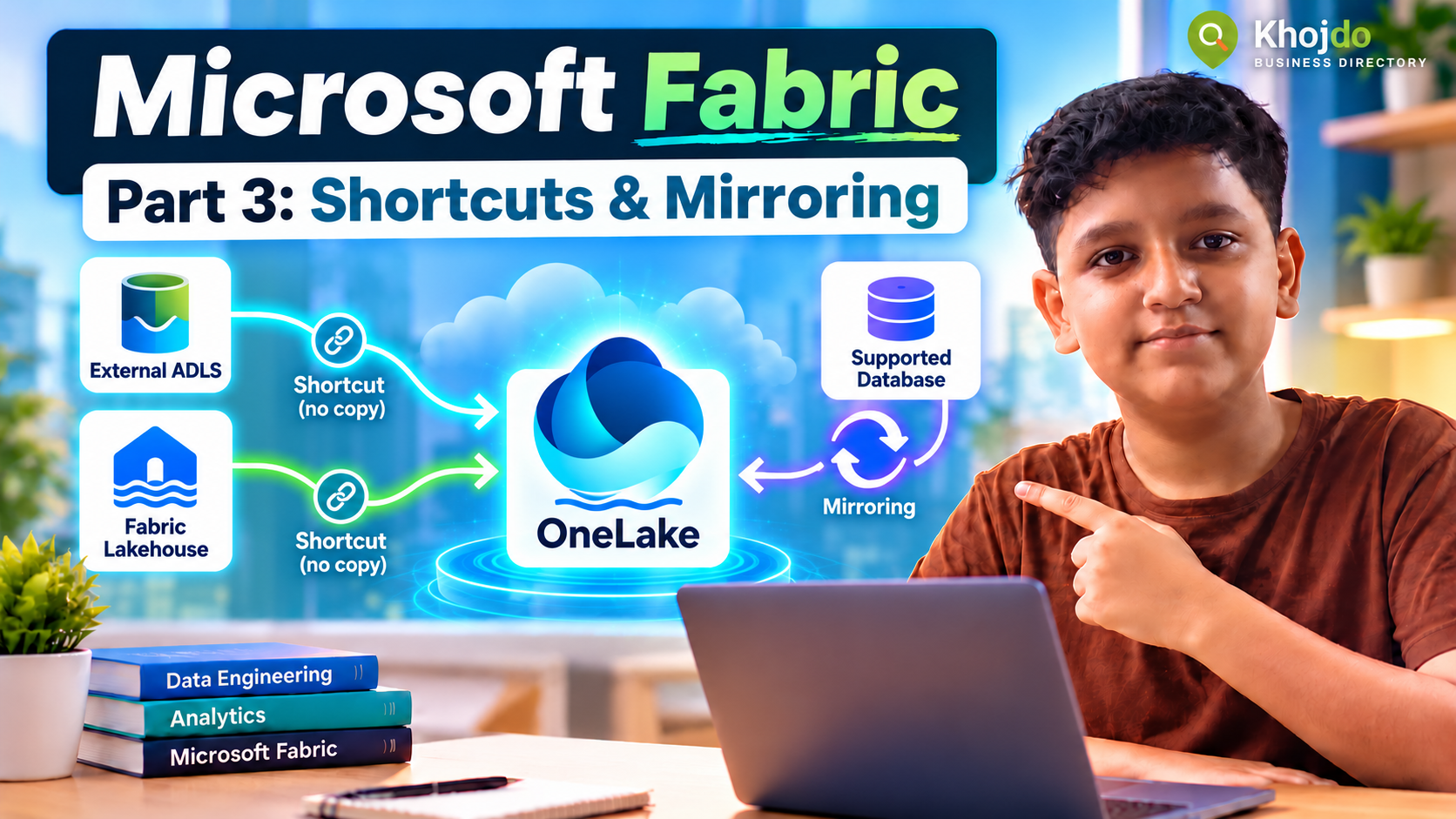
Short summary: Learn when to use OneLake shortcuts, when to copy data, and how to configure Mirroring for a supported source.
In Parts 1 and 2, we created a Lakehouse and ingested files, database data, API responses and streaming events. This part explains two ways to connect existing data to OneLake: shortcuts and Mirroring. They solve different problems, so choose based on freshness, source support, access controls, duplication and operating cost.
OneLake, in brief
OneLake is the shared logical data lake for Microsoft Fabric. A Lakehouse stores files and Delta tables in OneLake. Fabric can also expose data from other locations through shortcuts or replicate data from supported systems through Mirroring.
| Approach | What happens | Good fit |
|---|---|---|
| Copy with a pipeline | Fabric creates a separate landed copy. | You need controlled ingestion, replay, retention, or transformation before use. |
| OneLake shortcut | A pointer appears in the Lakehouse; the target data stays in its original location. | You want to use existing OneLake or supported external data without creating another full copy. |
| Mirroring | Fabric continuously replicates data from a supported source into OneLake. | You need low-latency analytical access and the source is supported by Mirroring. |
Part A — Create a shortcut to another Fabric Lakehouse
- Open the destination Lakehouse, for example
LH_Sales_Demo, in the Fabric portal. - In the Explorer pane, right-click a folder under Files or Tables, then choose New shortcut.
- Under Internal sources, choose Microsoft OneLake.
- Select the source workspace and Lakehouse. Expand Files or Tables and choose the folder or valid table you want to expose.
- Choose the connection method your organization permits. Pass-through uses each user’s identity; delegated identity uses a configured connection identity.
- Review the selected path and shortcut name, then choose Create.
- Confirm the shortcut icon appears in the destination Lakehouse. Open or query a small sample to verify that it resolves and that your identity has access.
A shortcut is not a security bypass. The person creating it needs write access in the destination item and read access to the target. Users also need permissions to access the shortcut and its target.
Microsoft illustrated steps: create a same-tenant OneLake shortcutPart B — Create an external shortcut to ADLS Gen2
Use this pattern when data already lives in Azure Data Lake Storage Gen2 and you want Fabric to reference it. ADLS Gen2 must have hierarchical namespace enabled. Have the storage owner confirm the path, identity, permissions and network configuration before creating the connection.
- In the Fabric Lakehouse, right-click the target location under Files or Tables and choose New shortcut.
- Under External sources, choose Azure Data Lake Storage Gen2.
- Enter the storage account DFS endpoint, for example
https://<storage-account>.dfs.core.windows.net. Choose an existing connection or create one. - Select an approved authentication option, such as organizational account, service principal or workspace identity, and provide credentials through the managed connection flow.
- Choose Next, browse to the desired container and directory, and select a folder below the container for the shortcut target.
- Review the path and shortcut name, then choose Create. Confirm the shortcut appears and test reading a small file.
Use least-privilege access. Avoid storage account keys when an Entra-based identity is suitable. Check the current limitations; for example, ADLS shortcuts do not support storage accounts that use Fabric managed private endpoints.
Microsoft illustrated steps: create an ADLS Gen2 shortcut, configure authorization and review limitationsPart C — Configure Mirroring for a supported database
Mirroring is source-specific. Microsoft documents sources including Azure SQL Database, SQL Server, PostgreSQL and others; availability and prerequisites vary by source, region and tenant. Check the current source list before designing around it. The steps below use Azure SQL Database as an example.
- Confirm the Azure SQL Database is reachable from Fabric and that an approved login or identity has the required permissions. The SQL server name is available on the database’s Overview page in Azure portal.
- In the Fabric portal, open the target workspace and choose the option to create a Mirrored Azure SQL Database.
- Enter a name for the mirrored item. Under New sources, select Azure SQL Database or choose an existing connection.
- Enter the server and database names, choose the required gateway if applicable, select the approved authentication type, and connect.
- Choose whether to mirror all available data or only selected tables, based on the demo scope and source impact. Start with a small set when learning.
- Choose Mirror database. Wait for the initial load, then open Monitor replication and confirm the status reaches Running.
- Check the table list, last refresh/replication status, and a small sample in the mirrored item. Compare counts and confirm a controlled source update appears in Fabric.
Mirroring creates an analytical copy in OneLake. Do not assume source database row-level permissions are automatically recreated in the mirrored item; configure Fabric permissions and data protection for the new copy. Monitor replication latency and errors before relying on it for an SLA.
Microsoft illustrated tutorial: mirror Azure SQL Database and monitor replication · Current Mirroring sources, lifecycle and operationsSelection guide
- Use a OneLake shortcut when the data already exists in OneLake or a supported external store, source access is reliable, and you want to avoid maintaining another full copy.
- Use Mirroring when the source is supported and you need ongoing replicated data for Fabric analytics with low operational ETL overhead.
- Use a pipeline copy when you need a controlled snapshot, a replayable raw landing zone, custom incremental logic, unsupported-source ingestion, or independent retention.
- Use a transformation pipeline after ingestion when consumers need cleaned, conformed or aggregated tables rather than the source shape.
Common mistakes and mitigation
- Assuming a shortcut copies the source: document that it references the target. If a durable independent copy is required, use a pipeline or another replication pattern.
- Granting broad storage keys: use a managed connection and least-privilege identity; have the storage owner validate roles and ACLs.
- Pointing a shortcut at a container root: select a specific directory and check connector limitations and path structure.
- Choosing Mirroring without checking source support: validate the current source, region, permissions, network prerequisites and limitations first.
- Assuming source permissions transfer: set and test access controls on the Fabric destination or mirrored item independently.
- Skipping monitoring: track replication state, latency, errors and data freshness; reconcile important tables before downstream reporting.
Part 3 completion checklist
- A OneLake shortcut to another Fabric Lakehouse has been created and tested.
- An ADLS Gen2 shortcut has been created only after permissions and storage configuration were confirmed.
- A supported database has been mirrored, or the team has recorded why another ingestion method is needed.
- For each path, the data owner, security model, freshness expectation and monitoring owner are documented.
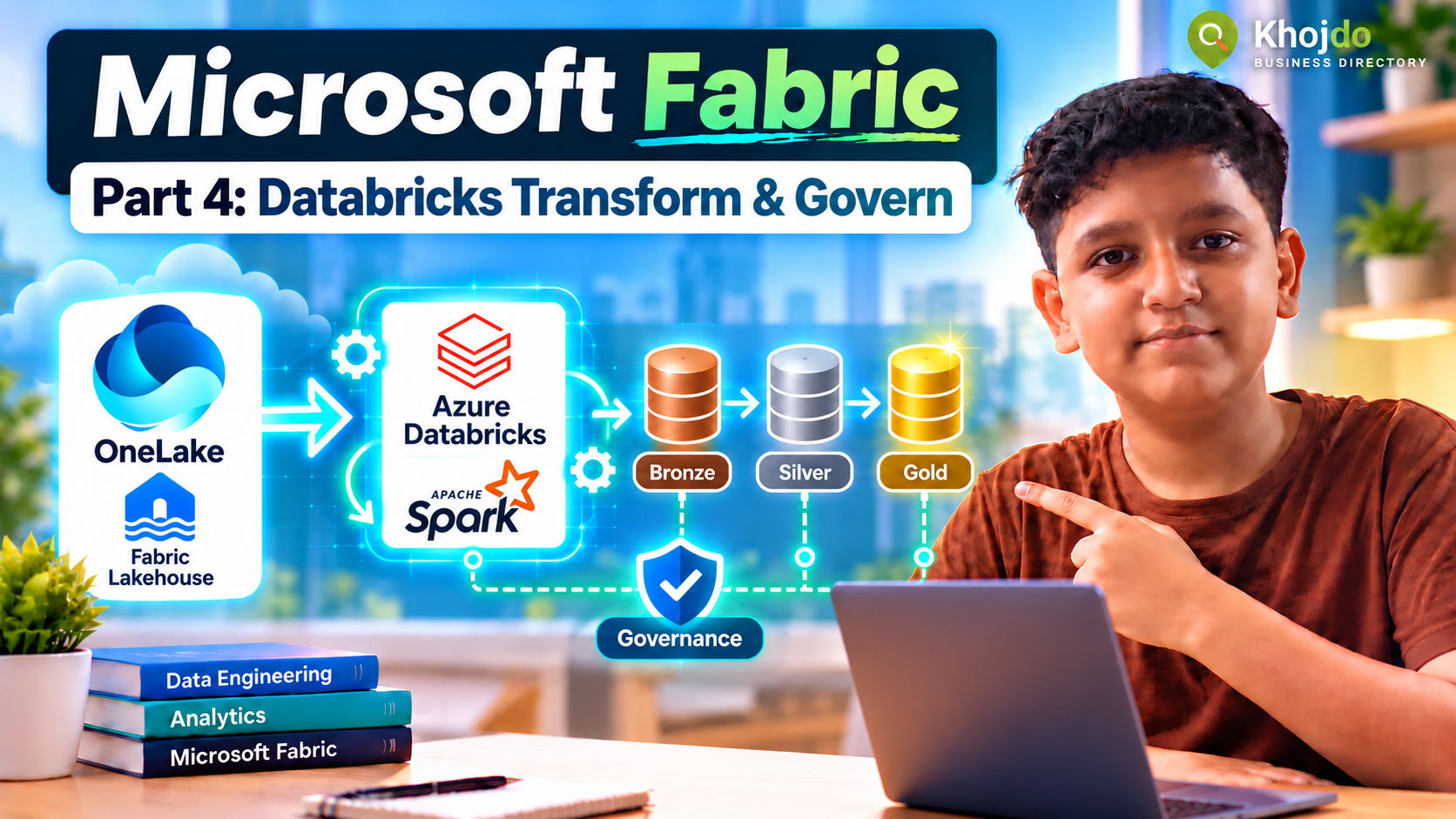
Next in Part 4: transform the ingested data with Azure Databricks, organize Bronze/Silver/Gold layers, and apply governance checks.