Azure Fabric :: Part 2 — Databases, APIs, and Streams
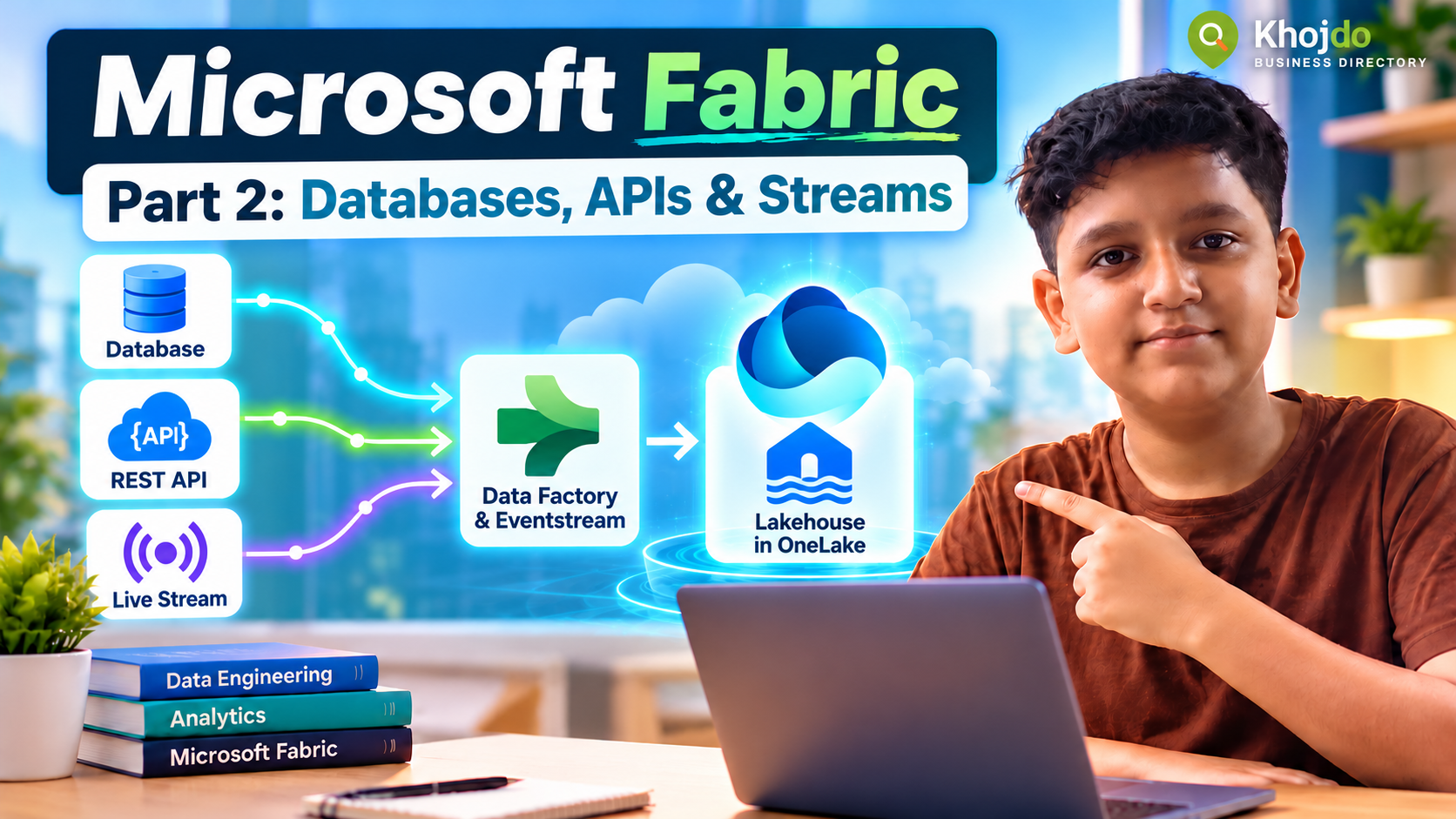
Connect database and REST API sources with Data Factory, then ingest live events into a Fabric Lakehouse with Eventstream.
In Part 1, we created a Fabric workspace and Lakehouse and loaded a sample file. In this article, we extend the same demo with three common sources: a relational database, a REST API and a live event stream. We’ll use Fabric-Junior-Demo and LH_Sales_Demo from Part 1. If you need to start from scratch, first create a workspace and Lakehouse.
Before you begin
Open the Microsoft Fabric portal. Azure portal is used to create and manage Azure resources such as Event Hubs or paid Fabric capacity; Fabric pipelines, Lakehouses and Eventstreams are configured in Fabric. Use an approved trial or workspace capacity, and check with your administrator before creating Azure resources that may incur charges.
For every source, use synthetic or approved demo data, least-privilege credentials and managed connections. Do not put passwords, API keys or tokens in notebook code, pipeline parameters visible to others, or Git.
1. Ingest from a database with a Data Factory pipeline
- In
Fabric-Junior-Demo, choose New item → Data pipeline. Name itPL_Database_To_Lakehouse. - Choose Copy data or add a Copy activity. Select the connector for your database type, such as Azure SQL Database, SQL Server or PostgreSQL.
- Select New connection. Enter the server and database details supplied by your administrator, then choose the approved authentication method. If prompted, configure the required gateway or network access with your administrator.
- Choose a small table or a limited query for the first run. Use a read-only source identity and avoid full-table extraction for a large production database.
- Set the destination to
LH_Sales_Demoand choose a raw landing path underFiles/bronze/database/. Keep the initial copy separate from curated tables. - Choose Validate, then Run. Open run history and check status, rows read and written, duration, and error details.
- Open the Lakehouse Files area and confirm the expected output arrived. Compare row counts with the source and inspect sample rows before using the data downstream.
For ongoing loads, configure an incremental strategy using a reliable change timestamp or key. Save a watermark only after a successful load, and make reruns idempotent to avoid duplicate records.
Microsoft illustrated walkthrough: create and run a Fabric copy pipeline2. Ingest from a REST API
- Create a second Data Factory pipeline named
PL_API_To_Lakehouseand add a Copy activity. - For the source, choose REST and create or select a managed connection. Enter the API base URL and relative resource path, such as an approved endpoint for demo orders.
- Choose the authentication supported by the API and connector. Fabric’s REST Copy connector supports Anonymous, Basic, Organizational account and Service principal authentication. Follow your organization’s approved secret-handling process.
- Configure the HTTP method, request headers and pagination rules required by that API. Confirm its page size, rate limits, retry guidance and terms before running a large extraction.
- Set the destination to
LH_Sales_Demo→Files/bronze/api/. Keep the raw response so schema changes can be inspected and the data can be replayed. - Run against a small date range or page. Verify the response format, record count and output files. Check for truncated pages, duplicate IDs and failed requests.
- For scheduled ingestion, use a watermark such as
updated_atplus a stable record ID. On HTTP 429 or transient 5xx errors, use a bounded retry/backoff strategy and respect the API’s rate limit.
For a changing API schema, land raw JSON first, record the schema version or ingestion date, and handle new or missing fields during a separate transformation step.
Microsoft REST connection setup, screenshots and supported authentication · REST connector capabilities3. Ingest live events with Eventstream
Eventstream is for continuous event data. A typical demo source is Azure Event Hubs; an Event Hubs namespace and event hub must already exist and be reachable. Use a built-in sample source if available in your tenant for a demo without creating another source resource.
- In the Fabric workspace, choose New item → Eventstream. Name it
ES_Sales_Events. - Choose Add source and select an available source, such as Azure Event Hubs. Select or create the approved cloud connection and enter the namespace, event hub and consumer details provided by your administrator.
- Select the event format, such as JSON or Avro, to match the producer. Use the preview pane to confirm that fields and timestamps are parsed as expected.
- Choose New destination → Lakehouse. Select
LH_Sales_Demo, create a Delta table such assales_events, and select the matching input format. - Optionally add simple event processing, such as filtering invalid records or selecting required fields. Keep transformations small in the first demo.
- Choose Publish to apply the Eventstream configuration. Wait until the destination shows that it is ingesting.
- Use the Eventstream preview and Lakehouse table to verify events are arriving. Compare event time with arrival time so late events are visible in monitoring.
Common beginner issues and fixes
- Connection test fails: verify the endpoint, authentication, firewall, gateway and required permissions with the source administrator.
- API returns only the first page: configure connector pagination and verify the total records against the API’s own count.
- Duplicate rows after rerun: use a stable key and idempotent merge or deduplication strategy in the transformation step.
- Stream is connected but the Lakehouse table is empty: check the event format, destination table, publish status and incoming event preview.
- Schema changes break a load: preserve raw data, validate expected fields and handle schema evolution deliberately before publishing curated tables.
Part 2 completion checklist
- A small database sample is landed in the Lakehouse and reconciled.
- A REST API sample is copied with pagination and authentication configured.
- An Eventstream is published and writing events to a Lakehouse Delta table.
- Each pipeline or stream has an owner, run history and a basic failure-check procedure.
Next in Part 3: understand when to copy data, create OneLake shortcuts, and use Mirroring for supported sources.